

Capturing meeting notes doesn’t have to mean manual typing, copy-pasting, and formatting after every call.
With M365 Copilot, you can automate the entire process – from Teams transcription through to a fully completed Word document – using a structured, repeatable workflow. The result is consistent, accurate meeting notes delivered in minutes, not hours. Read on for our step-by-step tutorial on how to automate this process.

Over time these tasks have been made easier by the introduction of Teams recordings and then transcriptions. But with the arrival of Copilot and Cowork, there’s a whole new workflow available to teams – one that handles the whole chain:
- Automatically transcribing a Teams meeting
- Putting that transcription through a standardised prompt
- Pushing those details into the template – consistently
To achieve this, we can use M365 Copilot across the board. There are five moving parts:
- Updating templates to use Content Controls (a one-time task for Copilot)
- Creating your custom Teams summary prompt
- Teams recording and transcription
- Copilot custom summaries in Teams
- The Copilot plug-in within Word
How to Automate Your Meeting Notes
Instead of splitting your attention between the conversation and the keyboard, Copilot allows you to stay present while the notes take care of themselves. With the right setup, every meeting flows into structured, ready-to-use documentation – automatically. Follow these steps below to get started.
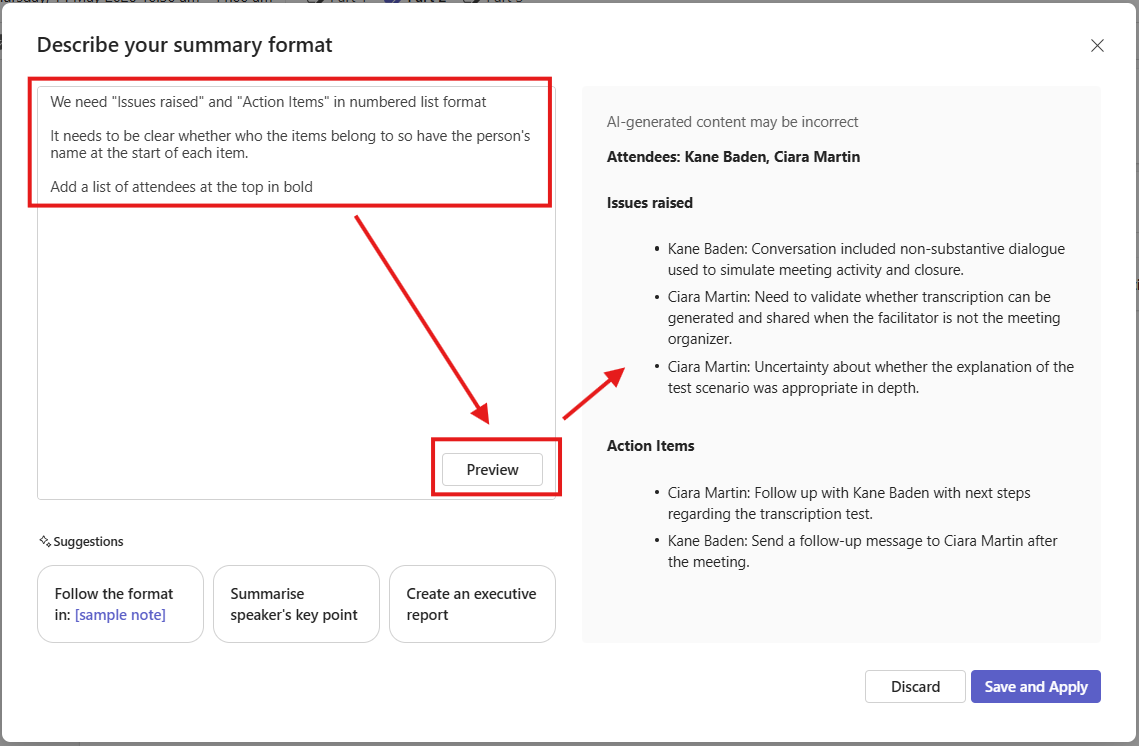
Step 1 – Create Your Custom Summary
Teams has summarisation features built in, and inside them you can build a Custom Summary with a tailored prompt to get a specific format of output – one that lines up with the fields in your template.
Go to any previously transcribed meeting and open Recap → Custom summary. From there you can describe exactly how you want the summary structured.

Step 2 – Have the Meeting
Join the meeting and start the transcription, then run your normal meeting. From the More (…) menu, choose Record and transcribe and then Start transcription.
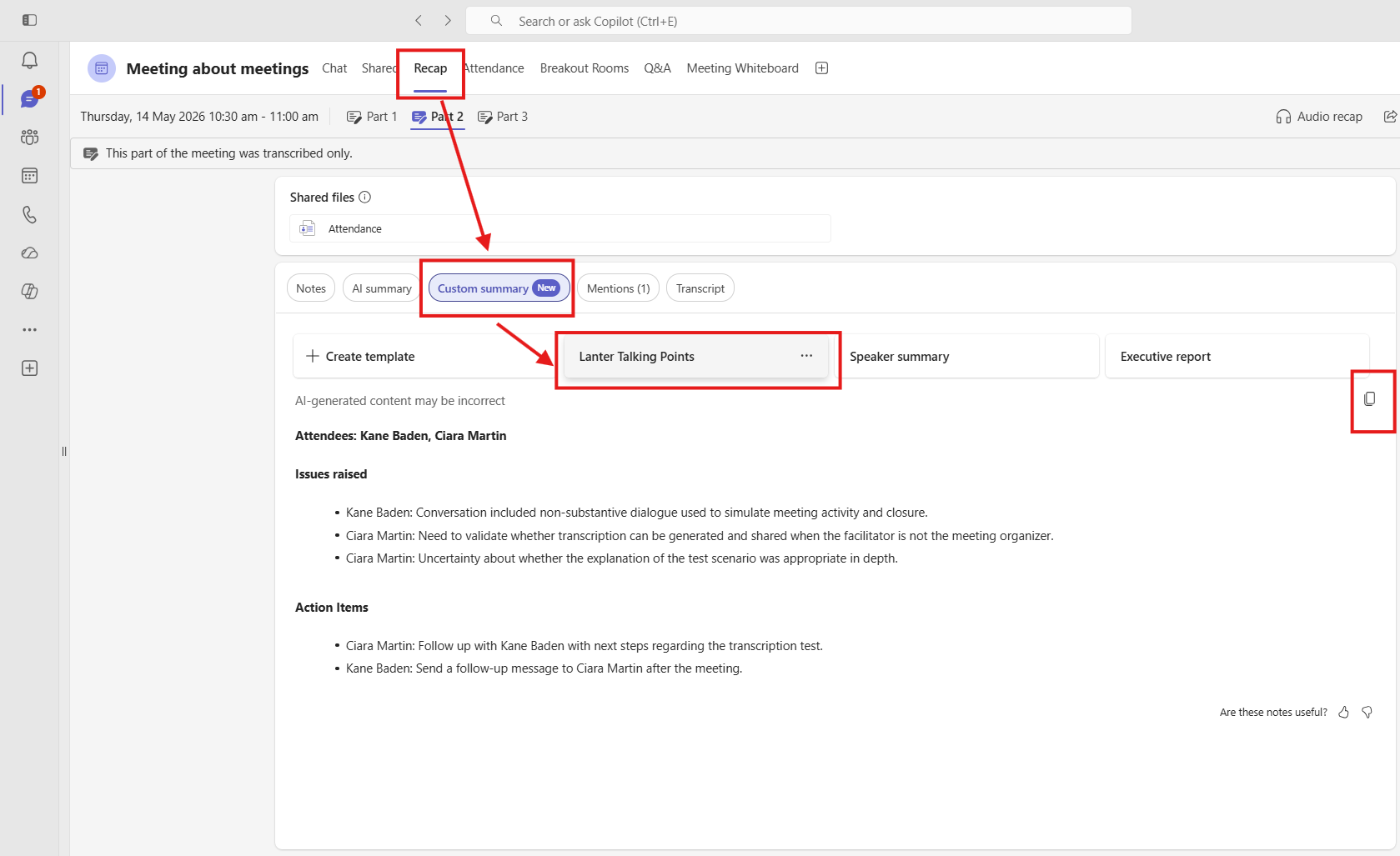
Step 3 – Collect the Custom Summary
Once the transcription is done, gather the output from your custom summary. Review the information and tweak anything that needs correcting, then use the copy button to grab the whole thing.
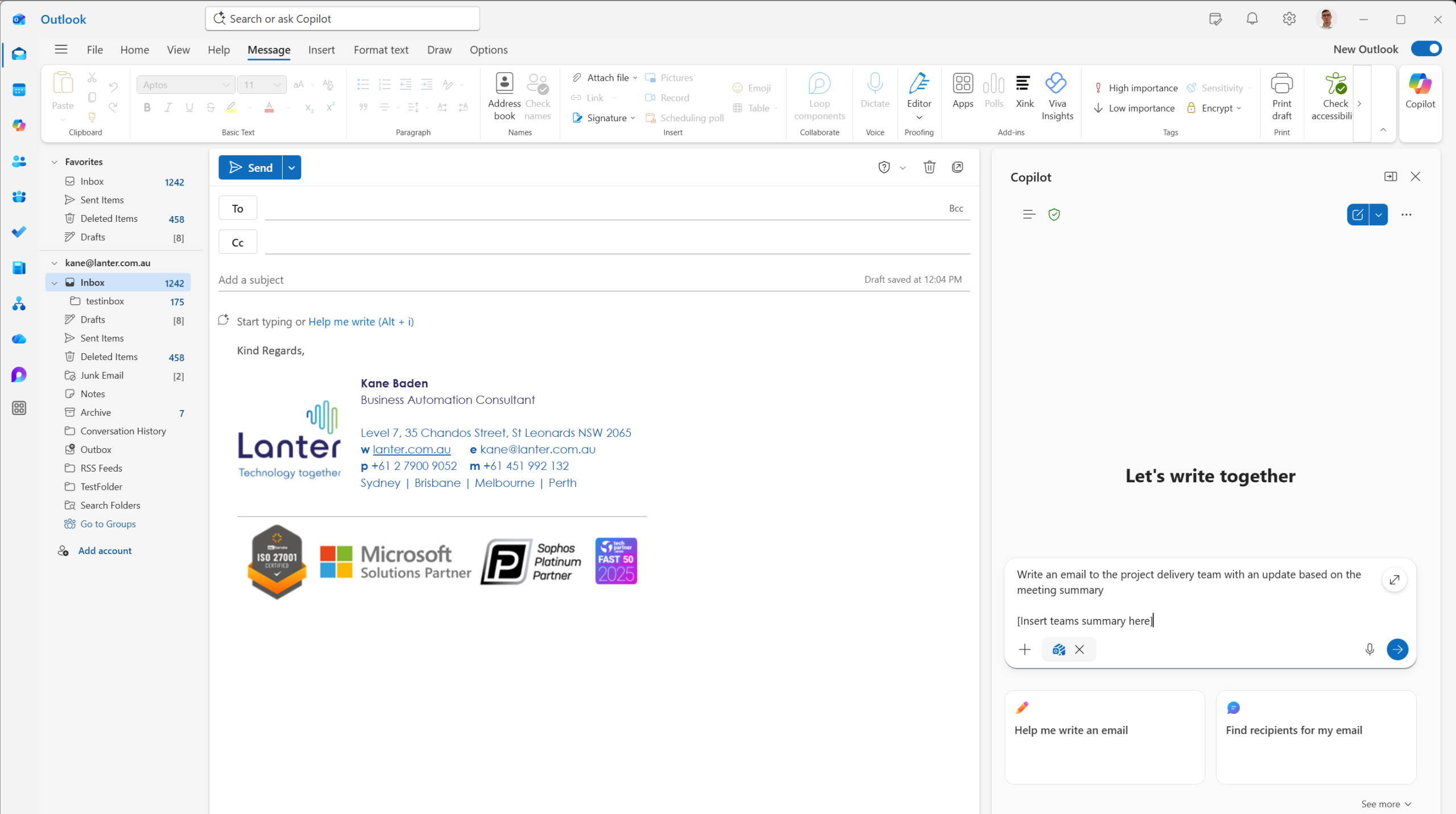
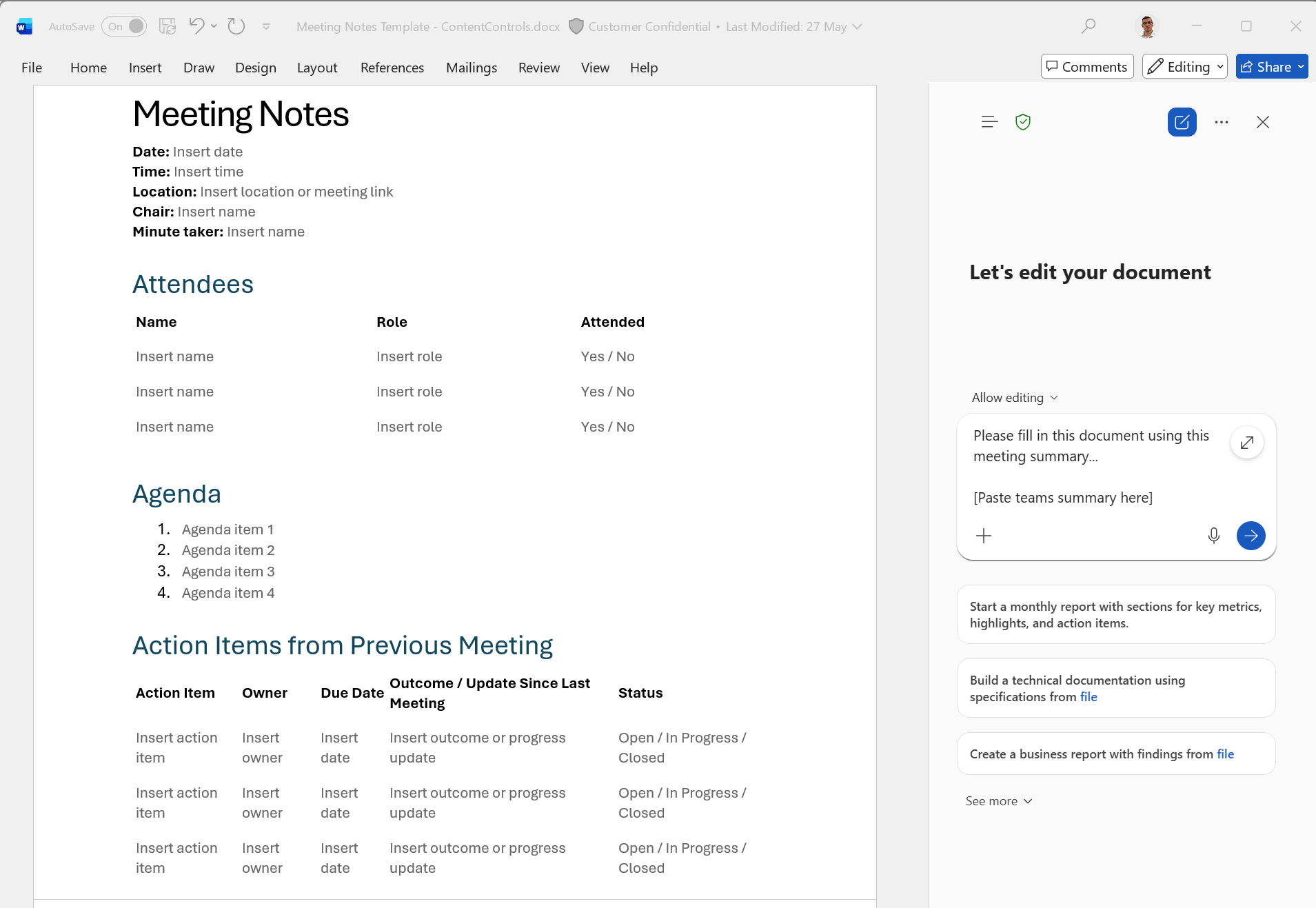
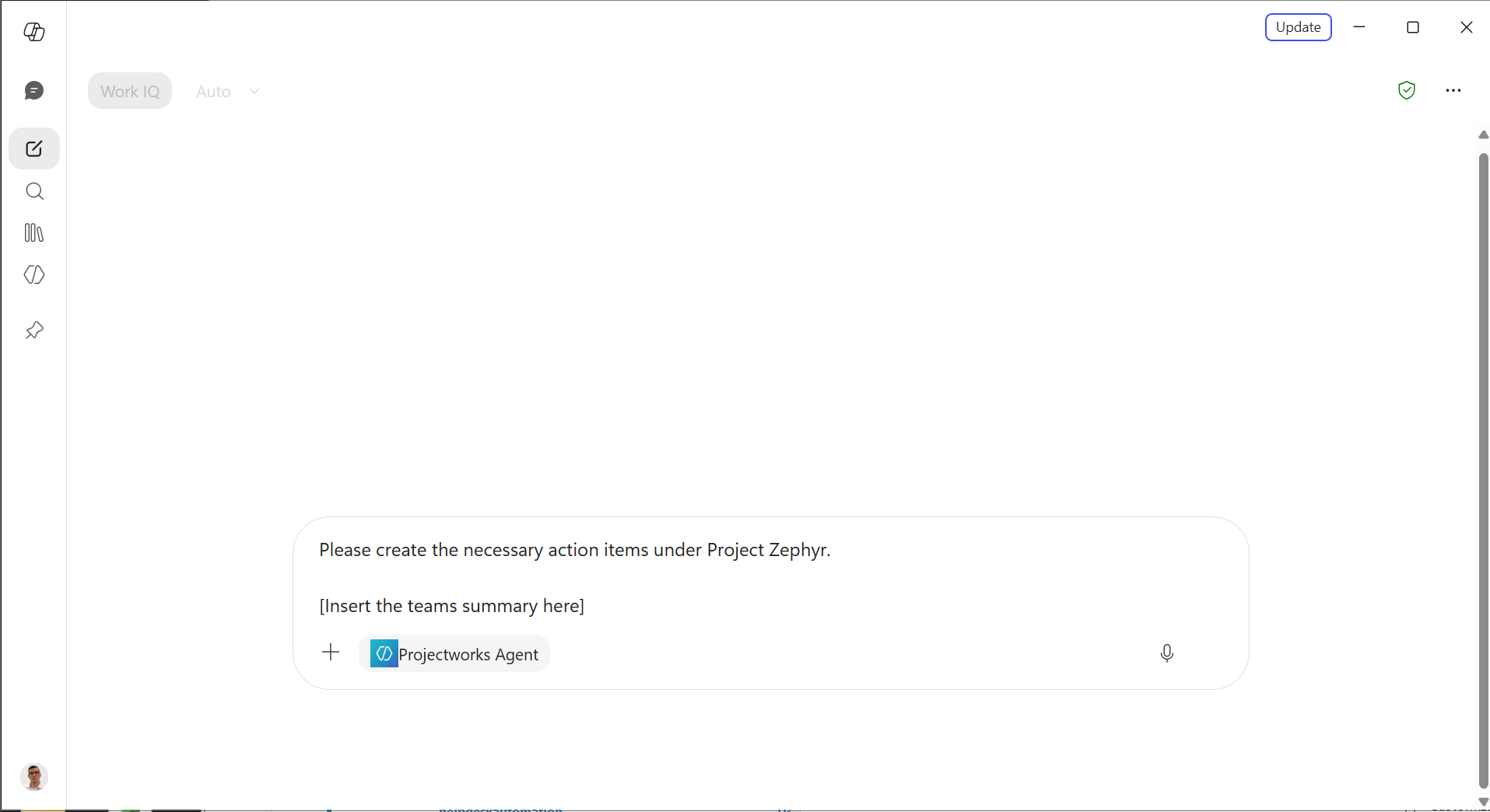
Step 4 – Have Copilot Complete the Document
You can take the outputs into copilot inside other applications now, such as:

Why this matters
Each of these tools is useful on its own, but the real win is chaining them together. Once the template is built and the custom summary prompt is saved, every meeting follows the same path: transcribe, summarise, drop it into Word. The output is consistent, the manual copy-paste disappears, and the notes are ready to distribute in minutes rather than hours.
Stay Present - Let AI Do the Heavy Lifting
The biggest payoff isn’t really about the notes at all. It’s that the focus of the meeting can go back to the meeting. Instead of splitting your attention between the conversation and frantically capturing every action item, you can let AI do the heavy lifting and stay genuinely present.
This matters most if you often run back-to-back meetings. There’s no longer a scramble to write everything up before the next call starts – the transcript, summary and completed document are waiting for you. You can context-switch back to the outcomes of a meeting when it suits you, rather than trying to hold it all in your head until you find a spare moment.
In short: be in the room while you’re in the room, and pick up the paperwork later – on your own terms.
FAQs
What are copilot credits?
The units of consumption Microsoft uses are the parallel to typical “token” pricing but because Copilot still executes entirely in the cloud its not as simple as ‘how many tokens’. It accounts for the computation, number of calls to different platforms etc.
How can I manage my spend?
Spend limits can be enforced at multiple levels with alerts. Whether its at a per group, per user or unlimited, there are multiple options to make sure that you’re able to effectively manage the consumption usage.
How can I see what a task costs?
By running the per cost skill in the prompt you can see what a given task will cost in Copilot Credits.
How much are Copilot credits?
At the time of writing they are $0.01 USD per credit, with discounts available for upfront credit purchase.
Can I still use Copilot without Cowork?
Absolutely. Cowork is that next level but Copilot is still very worthwhile because it’s not only the basic M365 Copilot interface but the Word and Outlook addins as well as advanced AI features in Teams (such as Transcription, Custom Summaries and Facilitator).