

If your team has just rolled out Microsoft 365 Copilot licences, here’s an easy win that can dramatically expand what you get out of the subscription: install Cowork, Anthropic’s Claude-powered digital coworker that runs natively inside the M365 Copilot experience.
Cowork interprets natural-language instructions, breaks them down into steps, and can run on a schedule — so it can quietly do background work for you (research, briefs, prep) while you get on with your day.
Cowork is delivered through Microsoft’s program and is powered by Anthropic’s Claude. Before any of this will work, your tenant administrator needs to:
- Enable Anthropic as an approved subprocessor in your Microsoft 365 admin settings.
- Join the Microsoft 365 Copilot program so agents like Cowork are available to your users.
- Manage Cowork credits. The FAQ below provides more detail on how credits work and how they can be managed.
Without both of these in place, Cowork won’t appear in the agent list. Once they’re enabled, the rest takes about two minutes.
Step 1 — Install Cowork
Open the M365 Copilot app and click Search in the left-hand navigation. Type “Cowork” into the search bar.
You’ll see Cowork appear in the results, described as “A versatile digital coworker that interprets natural language instructions, breaks them into…”. Click it to add it to your agents list. It will then live under Agents in the sidebar, ready to use.
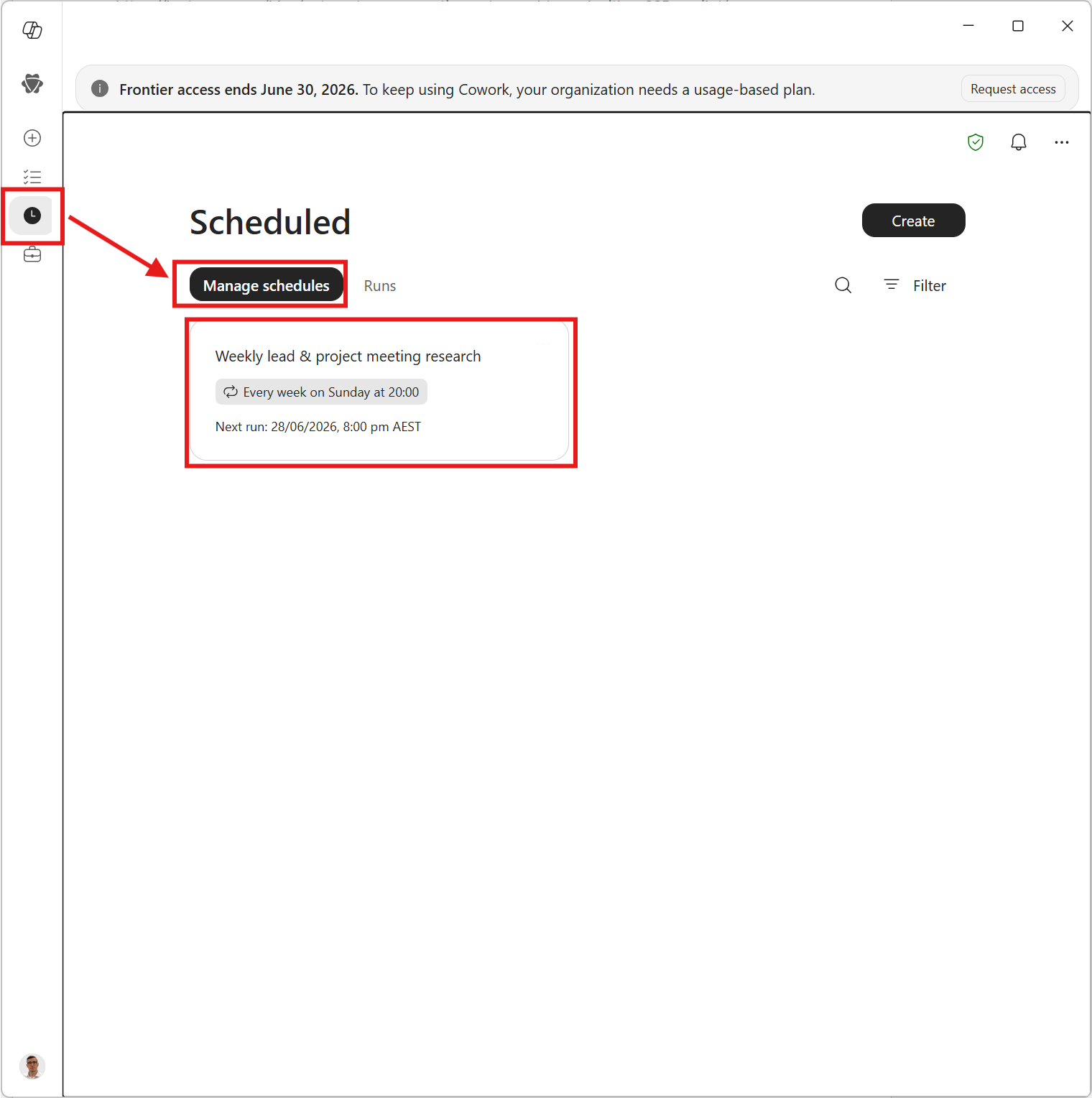
Step 2 — Let Cowork Help You Set Up a Scheduled Task
This is where Cowork really earns its keep. Rather than configuring schedules through menus, you can just describe what you want in plain English and Cowork will set it up for you.
Open Cowork and tell it what you’d like done on a recurring basis. For example:
“Look at my calendar for the rest of the week. For any meeting that looks like a potential project or new lead (e.g. inbound enquiries, HubSpot requests, meetings with external companies, new contacts), research the company and any named participants…”
Cowork will recognise this as something worth scheduling and reply with something like “I can set this up as a scheduled task. Quick question on timing before I do.” Tell it when you’d like it to run — for instance, “Monday mornings at 7am” — and it builds the scheduled task for you, ready to activate.
Click Activate and run and you’re done. From then on, the brief lands in your inbox before your week even starts.
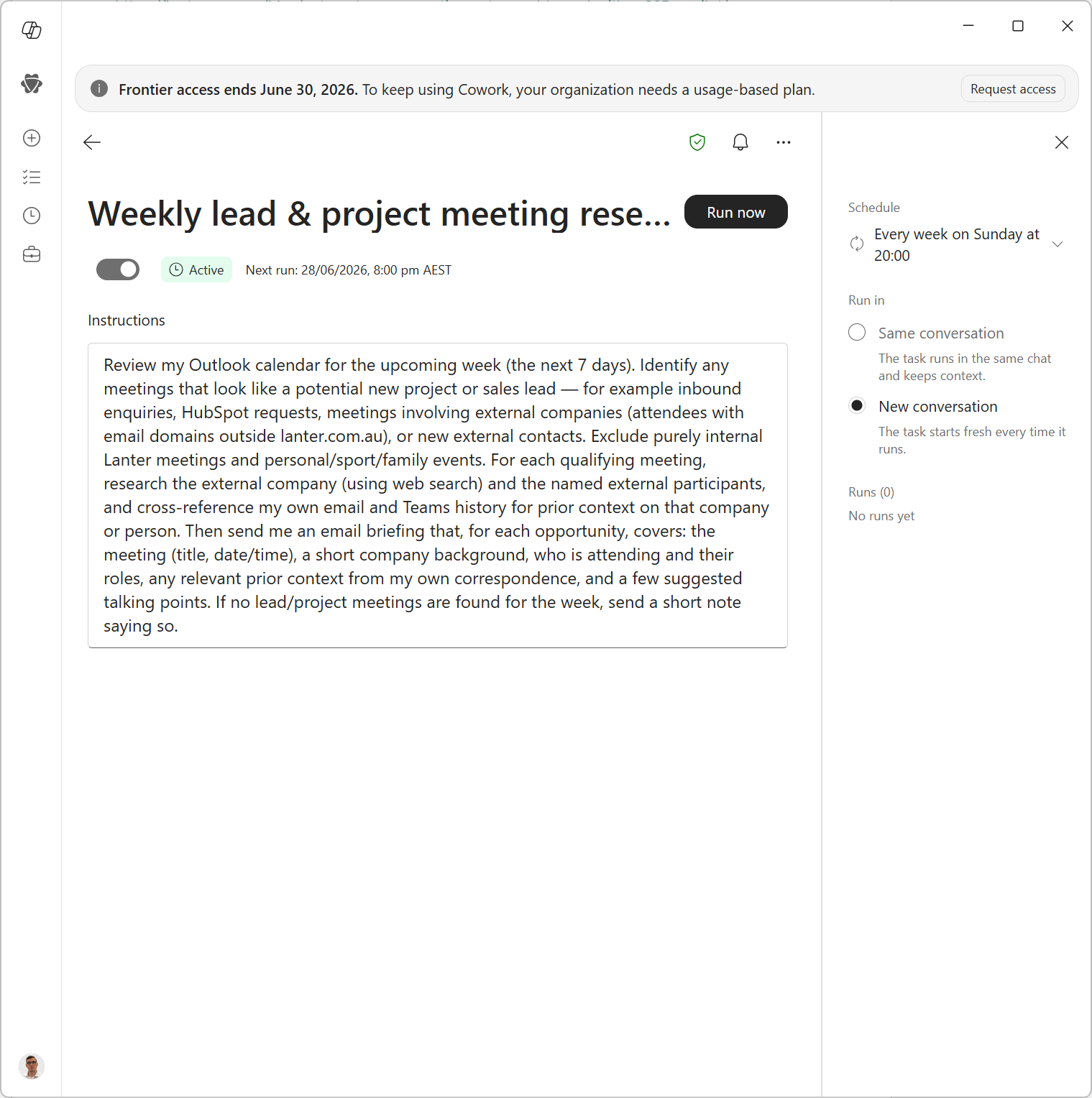
Step 3 — Tweak the Schedule Any Time
Open the task from the scheduled panel on the left hand side, find the item in the tasks list and click to update.
Why This Matters
Most Copilot users only ever use it reactively – asking it questions when they think to. Cowork flips that: it does work for you on a schedule, in the background, using the same Microsoft Graph context (your calendar, mail, files) that Copilot already has.
For the price of a few minutes of setup, you get a recurring research analyst, meeting prep assistant, or weekly digest writer — whatever you ask it to be.
FAQs
What are copilot credits?
The units of consumption Microsoft uses are the parallel to typical “token” pricing but because Copilot still executes entirely in the cloud its not as simple as ‘how many tokens’. It accounts for the computation, number of calls to different platforms etc.
How can I manage my spend?
Spend limits can be enforced at multiple levels with alerts. Whether its at a per group, per user or unlimited, there are multiple options to make sure that you’re able to effectively manage the consumption usage.
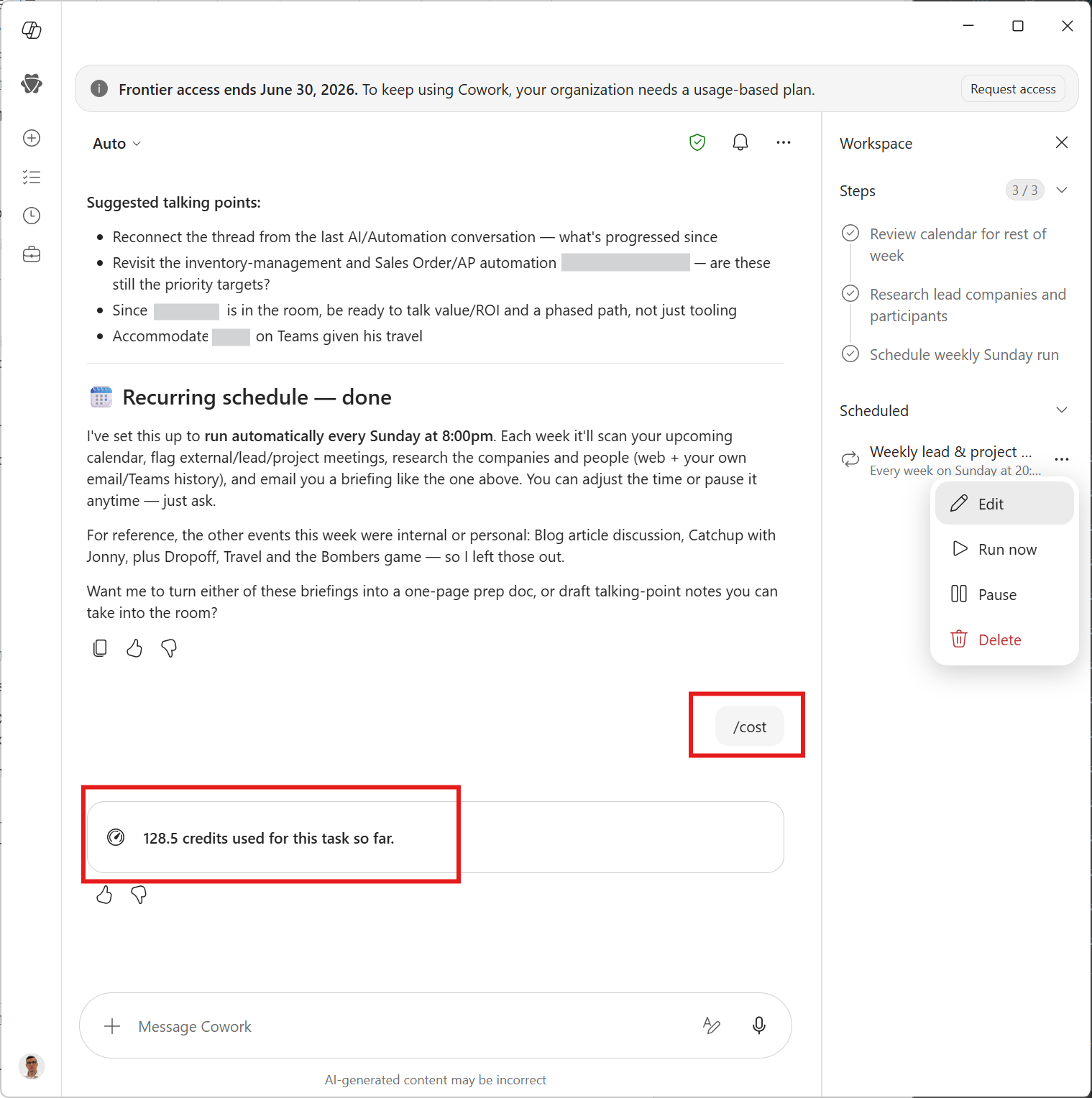
How can I see what a task costs?
By running the per cost skill in the prompt you can see what a given task will cost in Copilot Credits.
How much are Copilot credits?
At the time of writing they are $0.01 USD per credit, with discounts available for upfront credit purchase.
Can I still use Copilot without Cowork?
Absolutely. Cowork is that next level but Copilot is still very worthwhile because it’s not only the basic M365 Copilot interface but the Word and Outlook addins as well as advanced AI features in Teams (such as Transcription, Custom Summaries and Facilitator).